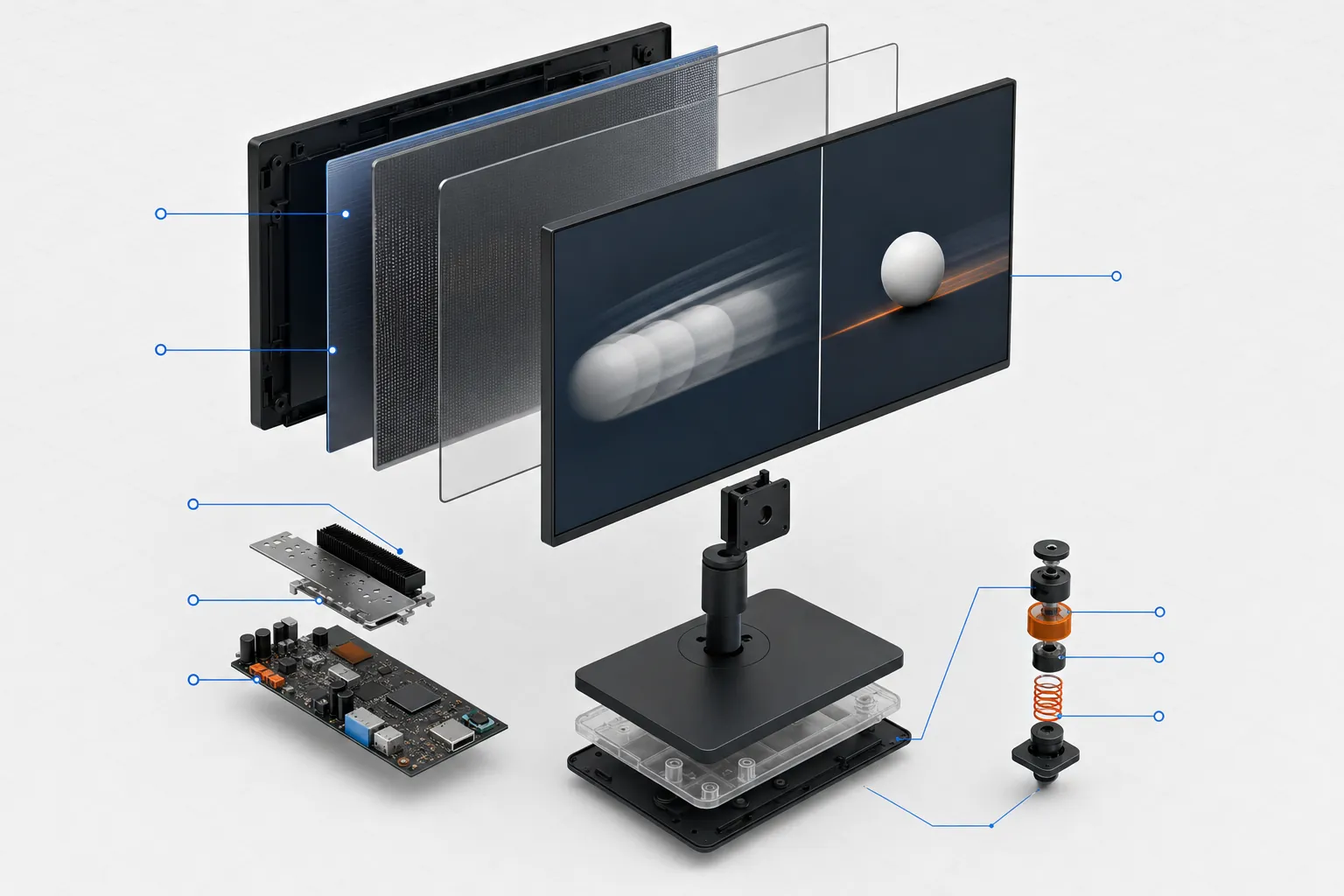
Jargon buster
- Refresh rate (Hz)
- How many times per second the screen draws a new picture.
- Frame rate (fps)
- How many new images per second the game or console actually sends.
- Frame time
- The gap between two images, in milliseconds. At 120 Hz it is about 8.3 ms.
- GtG
- Grey-to-grey: how quickly a pixel changes from one shade to another.
- MPRT
- Moving picture response time: how long each image stays visible, linked to motion blur.
- MBR
- Motion blur reduction: LG's label for a figure measured with its blur-reduction mode on.
- Overdrive
- A monitor setting that pushes pixels to change faster, and can cause halos if set too high.
- Tearing
- A visible horizontal split where the screen shows parts of two frames at once.
- VRR
- Variable refresh rate: the screen waits for each new frame instead of refreshing on a fixed timer.
- DisplayPort
- A video connection found on PCs and monitors but not on current consoles.
What the hertz figure on a monitor actually counts
Refresh rate, measured in hertz (Hz), is how many times per second the screen draws a new picture. A 60 Hz screen redraws 60 times a second; a 144 Hz screen redraws 144 times. A simple way to see what that means is to divide 1,000 by the refresh rate. That gives the gap between redraws in milliseconds:
- 60 Hz: a new image about every 16.7 ms
- 120 Hz: about every 8.3 ms
- 144 Hz: about every 6.9 ms
- 180 Hz: about every 5.6 ms
- 200 Hz: about every 5.0 ms
Going from 60 Hz to 120 Hz halves the wait between images, which is a big change. Going from 144 Hz to 200 Hz saves under 2 ms per image, which is a much smaller one. That is why the jump from a basic 60 Hz screen to any high-refresh monitor matters more than the difference between two high-refresh models.
Budget gaming monitors on sale in the UK in late 2026 commonly list 144 Hz to 200 Hz. LG's UltraGear 27G411B-B lists 144 Hz, MSI's MAG 274QF lists 180 Hz, and Samsung's Odyssey G3 G30H lists up to 200 Hz.
Frame rate and refresh rate: the game has to keep up
The monitor's refresh rate is a ceiling, not a promise. The picture only changes when the game sends a new frame, and the number of frames per second (fps) depends on the game, its settings and the hardware running it.
If a PC game runs at 70 fps on a 180 Hz monitor, you see roughly 70 new images per second. The screen keeps refreshing, but it often shows the same frame twice. In the other direction, a game running faster than the monitor's refresh rate can produce tearing, where the top and bottom of the screen show parts of two different frames.
On a PC, frame rate depends mostly on the graphics card and the resolution. Higher resolutions mean more pixels to draw, so a 1440p monitor asks more of the same graphics card than a 1080p one. That is one reason 1080p screens with high refresh rates remain popular with PC players on a budget.
How much refresh rate each current console can use
Consoles set a clear upper limit, and it is lower than most gaming monitors offer.
- Xbox Series X|S: Xbox support describes 120 Hz output. 4K at 120 Hz needs a Series X, an Ultra High Speed HDMI cable and an HDMI 2.1 display. On displays without HDMI 2.1, Xbox says you can still choose 120 Hz at a lower resolution.
- PS5: Sony says 1440p output needs a display that supports 1440p at 60 Hz, or at 60 Hz and 120 Hz.
- Switch 2: Nintendo's spec sheet lists a TV-mode maximum of 3840 x 2160 at 60 fps, and 120 fps when 1920 x 1080 or 2560 x 1440 is selected. The console's own screen lists variable refresh rate up to 120 Hz.
In practice, a console player gets the same top refresh rate from a 144 Hz monitor as from a 200 Hz one: 120 Hz, and only in games that offer a 120 fps mode. Many console games run at 30 or 60 fps.
For a console-only setup, check that the monitor accepts 120 Hz over HDMI at the resolution you want. MSI, for example, lists the MAG 274QF at 1440p up to 144 Hz over HDMI 2.0b, but at 180 Hz only over DisplayPort, a port consoles do not have.
GtG, MPRT and MBR: three ways to quote response time
Response time describes how quickly pixels change, and it affects how much smearing or ghosting you see behind moving objects. Manufacturers measure it in different ways and do not always say which one they used.
- GtG (grey-to-grey): how long a pixel takes to change from one shade of grey to another. This measures the panel itself.
- MPRT (moving picture response time): how long an image stays visible on screen, which relates to perceived motion blur. Low MPRT figures are often achieved with a backlight-strobing mode.
- MBR (motion blur reduction): LG uses this label for figures achieved with its blur-reduction mode switched on.
These numbers do not measure the same thing, so they cannot be lined up against each other. AOC lists the 24G4X at 1 ms GtG and 0.5 ms MPRT, which shows that one monitor can carry two quite different figures. Samsung lists its Odyssey G3 G30H at 1 ms MPRT and its Odyssey G5 G50F at 1 ms GtG.
Why a 0.3 ms or 0.5 ms claim tells you less than it seems
Look closely and you will often see a small extra word: min. ASUS lists the TUF Gaming VG27AQE5A at “0.3ms (GTG, min)” and MSI lists the MAG 274QF at “0.5ms (GtG, Min.)”. A minimum is the fastest transition measured, usually with the monitor's overdrive setting at its most aggressive. Average transitions are slower, and the most aggressive overdrive settings can cause overshoot, a faint bright or dark halo behind moving objects.
None of this makes these monitors poor. It means the headline figure is a best case under the manufacturer's conditions, not what every frame will look like. When two budget monitors both claim around 1 ms, the response-time figure alone is not a good reason to choose one over the other. Panel type, refresh rate, resolution and the ports you need will usually matter more.
Independent measurements, where they exist, are the best way to compare real motion clarity. Spec sheets cannot show it.
Adaptive sync on PC and console: FreeSync, G-SYNC Compatible and HDMI VRR
Variable refresh rate (VRR) lets the monitor refresh when a new frame is ready rather than on a fixed timer. When the game's frame rate dips, VRR reduces both tearing and stutter. It works within a range; MSI, for example, lists an activated range of 48 to 180 Hz for the MAG 274QF.
- AMD FreeSync and VESA Adaptive-Sync are the common PC standards and appear on all six monitors in our budget monitor comparison.
- NVIDIA G-SYNC Compatible means the monitor is listed for adaptive sync with NVIDIA graphics cards. LG, Samsung, AOC and ASUS list it for the models we compared.
- HDMI 2.1 VRR is what Sony names for PS5: VRR on HDMI 2.1 VRR-compatible TVs and monitors.
A monitor with FreeSync over HDMI 2.0 does not necessarily give a PS5 VRR. If console VRR is important to you, look for HDMI 2.1 VRR listed in the specification, which is uncommon on monitors under £200.
Sensible refresh-rate targets for different budgets and setups
- Console only (PS5, Xbox Series, Switch 2): a monitor that accepts 120 Hz over HDMI at your chosen resolution covers what these consoles can output. Paying extra for 180 Hz or 200 Hz brings nothing on a console.
- Budget or older gaming PC: 1080p at 144 to 180 Hz keeps frame rates achievable. Check what fps your main games reach before paying for more refresh rate than the PC can feed.
- Mid-range PC: 1440p at around 165 to 180 Hz is the common step up. Remember that a high refresh rate on these monitors often needs DisplayPort.
- Shared console and PC: look for two HDMI inputs plus DisplayPort so both machines stay plugged in.
For other numbers on the box, see our guide to reading a spec sheet.
Questions
Is 144 Hz enough for gaming?
For consoles, yes: current consoles output at most 120 Hz. For PCs, 144 Hz is a common, affordable step up from 60 Hz. Higher rates only help if your PC regularly produces more than 144 fps.
Is a 1 ms monitor faster than a 5 ms one?
Only if both figures were measured the same way. GtG, MPRT and MBR measure different things, and many figures are minimums. Check which method is quoted before comparing.
Does a high refresh rate reduce input lag?
A higher refresh rate shortens the time between screen updates, which can make a game feel more responsive when it runs at a high frame rate. It does not speed up a game that runs at 60 fps.
Why does my monitor show 144 Hz on PC but not on my console?
Many monitors reach their top refresh rate only over DisplayPort, and consoles use HDMI. Consoles also limit output to 120 Hz, and only in games and modes that support it.
Do I need VRR?
It helps when frame rates go up and down, which is common on PCs. On PS5, Sony describes VRR as needing an HDMI 2.1 VRR-compatible display, which few budget monitors offer.
- https://www.lg.com/uk/monitors/gaming/27g411b-b/
- https://uk-store.msi.com/products/mag-274qf
- https://www.samsung.com/uk/monitors/gaming/odyssey-g3-g30h-27-inch-200hz-fhd-ls27hg302euxxu/
- https://www.samsung.com/uk/monitors/gaming/odyssey-g5-g50f-27-inch-180hz-qhd-ls27fg502euxxu/
- https://aoc.com/uk/gaming/products/monitors/24g4x
- https://www.asus.com/uk/displays-desktops/monitors/tuf-gaming/tuf-gaming-vg27aqe5a/techspec/
- https://support.xbox.com/en-GB/help/hardware-network/display-sound/4k-gaming-at-120hz
- https://www.playstation.com/en-gb/ps5/ps5-features/
- https://www.nintendo.com/en-gb/Hardware/Nintendo-Switch-2/Nintendo-Switch-2-Specifications-2785627.html
Spec changed? Tell us.